

GST-Compliant Invoices
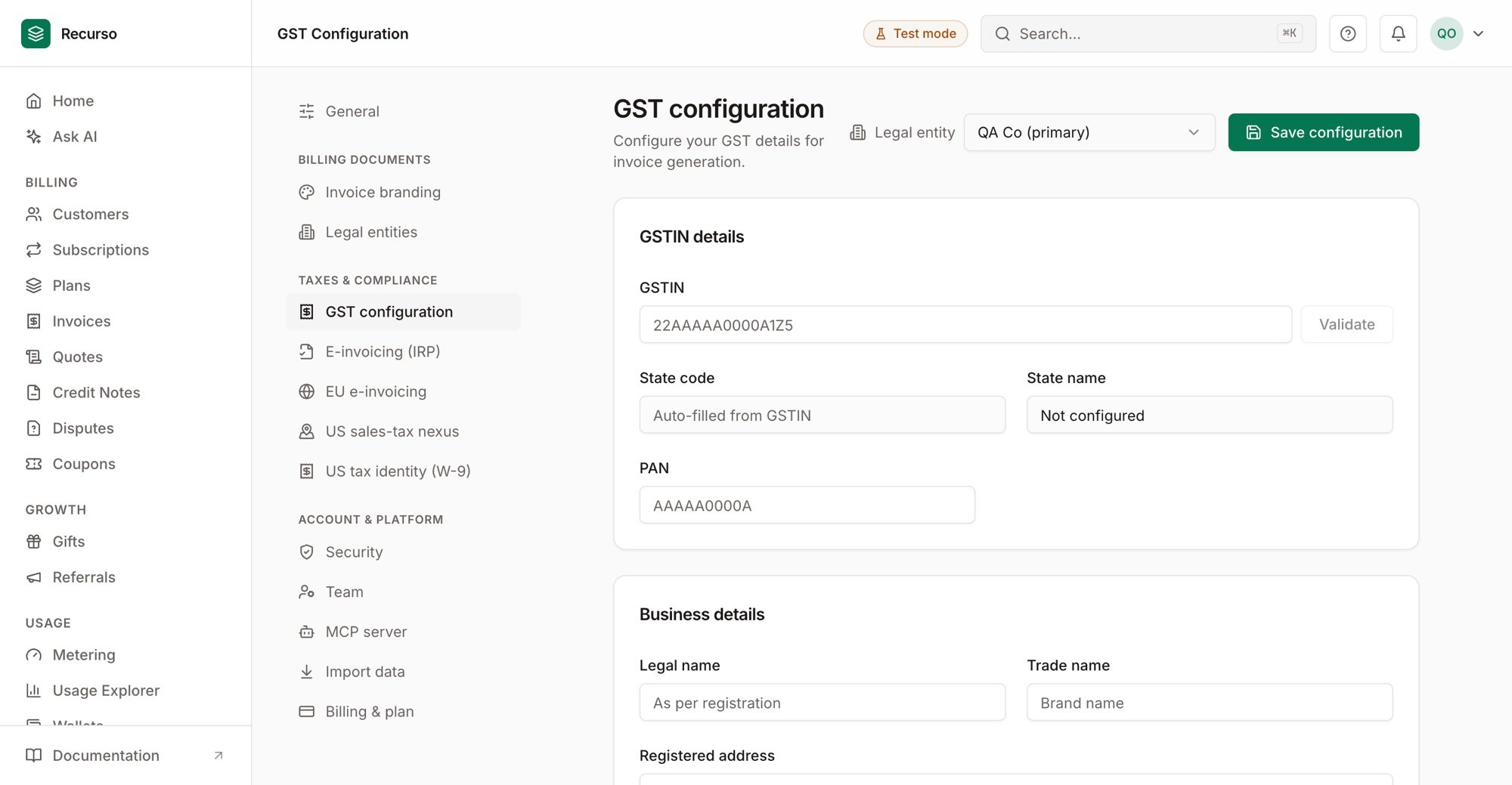
GST configuration in Settings
- GSTIN validation and display
- SAC (Services Accounting Code) for SaaS
- CGST/SGST for intrastate, IGST for interstate
- HSN code support
- E-invoice integration (IRN, signed QR)
Configuration
Seller Details
Configure your business GST details:.env
The
sac_code drives the rate. GST rates in India follow the SAC/HSN
classification of the service, so Recurso derives the applied rate from
sac_code (e.g. 998314 → 18% for SaaS). gst_rate is only a fallback,
used when the SAC code isn’t a recognized classification — a recognized code
always takes precedence. To change the rate, set the correct sac_code.Tax Calculation
GST is calculated automatically based on place of supply:Intrastate (Same State)
When seller and buyer are in the same state:Interstate (Different States)
When seller and buyer are in different states:Place of supply is determined by customer’s billing address state code.
B2B Invoices
For business customers with GSTIN:- Customer GSTIN
- Customer legal name
- Reverse charge applicability
- Input tax credit eligibility
SAC Codes
Common SAC codes for SaaS:Invoice Format
GST-compliant invoice includes:E-Invoice Integration
For businesses exceeding ₹5 Cr turnover:- IRN: Invoice Reference Number from GST portal
- Acknowledgement Number: Validation proof
- Signed QR Code: For verification
Download PDF
Compliance Checklist
1
Configure seller GSTIN
Add your business GSTIN, PAN, and state code
2
Set SAC code
Configure default SAC code for your services
3
Capture customer GSTIN
For B2B customers, collect and validate GSTIN
4
Enable e-invoicing
If turnover > ₹5 Cr, integrate with GSP
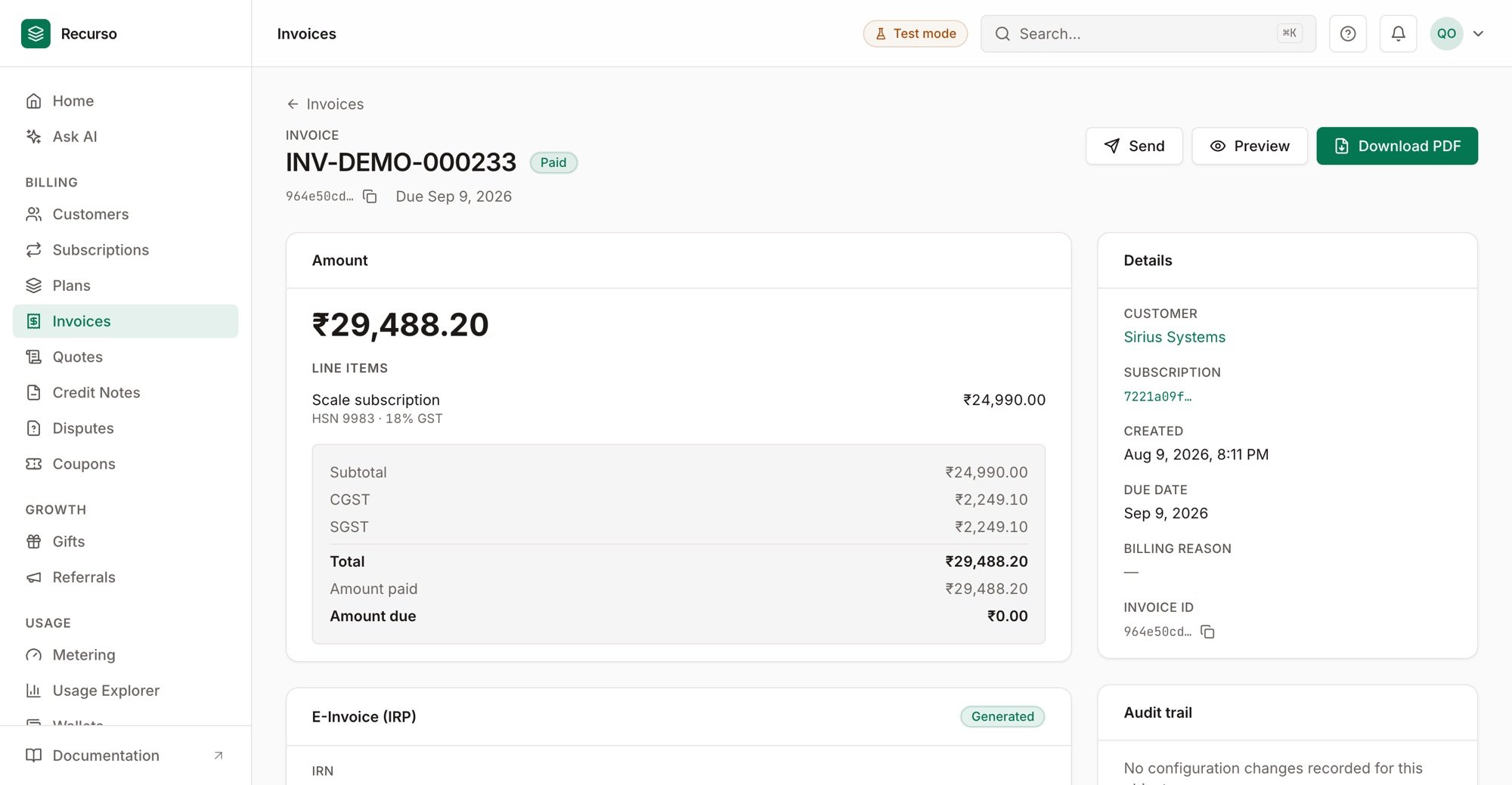
Per-line CGST/SGST with HSN codes on a paid, e-invoiced invoice