

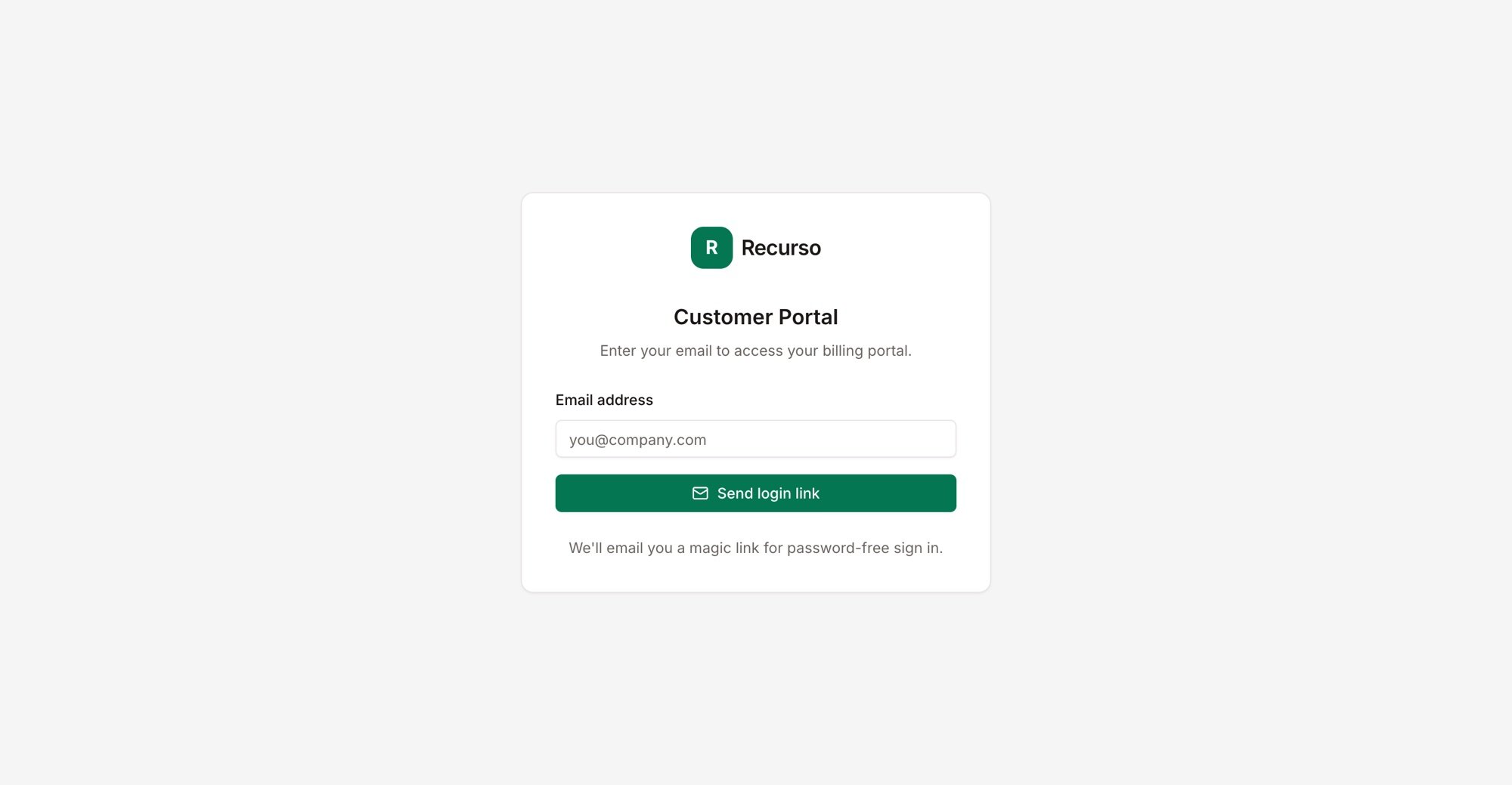
Magic-link sign-in to the customer portal
What customers can do
The customer portal is the self-service area your customers sign into — it lives under/portal, separate from the operator dashboard. From it a customer
can view their invoices and subscription, download invoice PDFs, raise a query on
an invoice, update their payment method, and redeem a gift code.
The portal is what your customers see. As an operator you configure the
billing behind it from the main dashboard; you can also deep-link a customer
straight to
/portal/login?email=… with their address prefilled.Signing in (magic link)
The portal is password-free.1
Request a link
At /portal/login the customer enters their email and clicks Send login
link. Recurso emails a one-time magic link and the page confirms “Check
your email.”
2
Verify
Opening the link lands on /portal/verify, which exchanges the single-use
token for a session and forwards to the dashboard. An invalid or expired link
bounces back to login.
Portal dashboard
After signing in, the customer sees /portal/dashboard with:- Quick stats — Total Invoices, Total Paid, and Outstanding, plus a Refer & earn card showing their referral code with a copy button.
- Invoices table — each invoice with its date, amount, and status. From a
row they can:
- PDF — open the rendered invoice in a new tab.
- Query invoice — raise a question or dispute (see below).
- Header actions: Update payment method, Redeem gift, and Sign out.
Querying an invoice
Query invoice opens a dialog where the customer describes what looks wrong and submits it. The row then shows a Query open badge (turning to Query resolved once your team resolves it), and the button is disabled while a query is open.Update payment method
Update payment method opens a secure dialog. The card is entered directly with Stripe — full card numbers never touch Recurso — and once saved becomes the customer’s default, including billing name and address so it can be charged for future invoices.On deployments that don’t support self-serve card entry (for example
Razorpay-only), the dialog instead offers Re-authorize UPI Autopay, which
sends the customer to a secure Razorpay page to approve the mandate.
Redeem a gift
Redeem gift (/portal/redeem) lets a signed-in customer enter a gift code to claim a subscription. On success they’re returned to the dashboard. A customer who isn’t signed in is sent to login first.Related
Gifts & referrals
Issue the gift codes and referral rewards customers redeem here.
Invoices
The invoices customers view and query in the portal.
Disputes
Where invoice queries raised in the portal surface for your team.
Payments & mandates
Payment methods and UPI mandates behind the portal’s card update.