

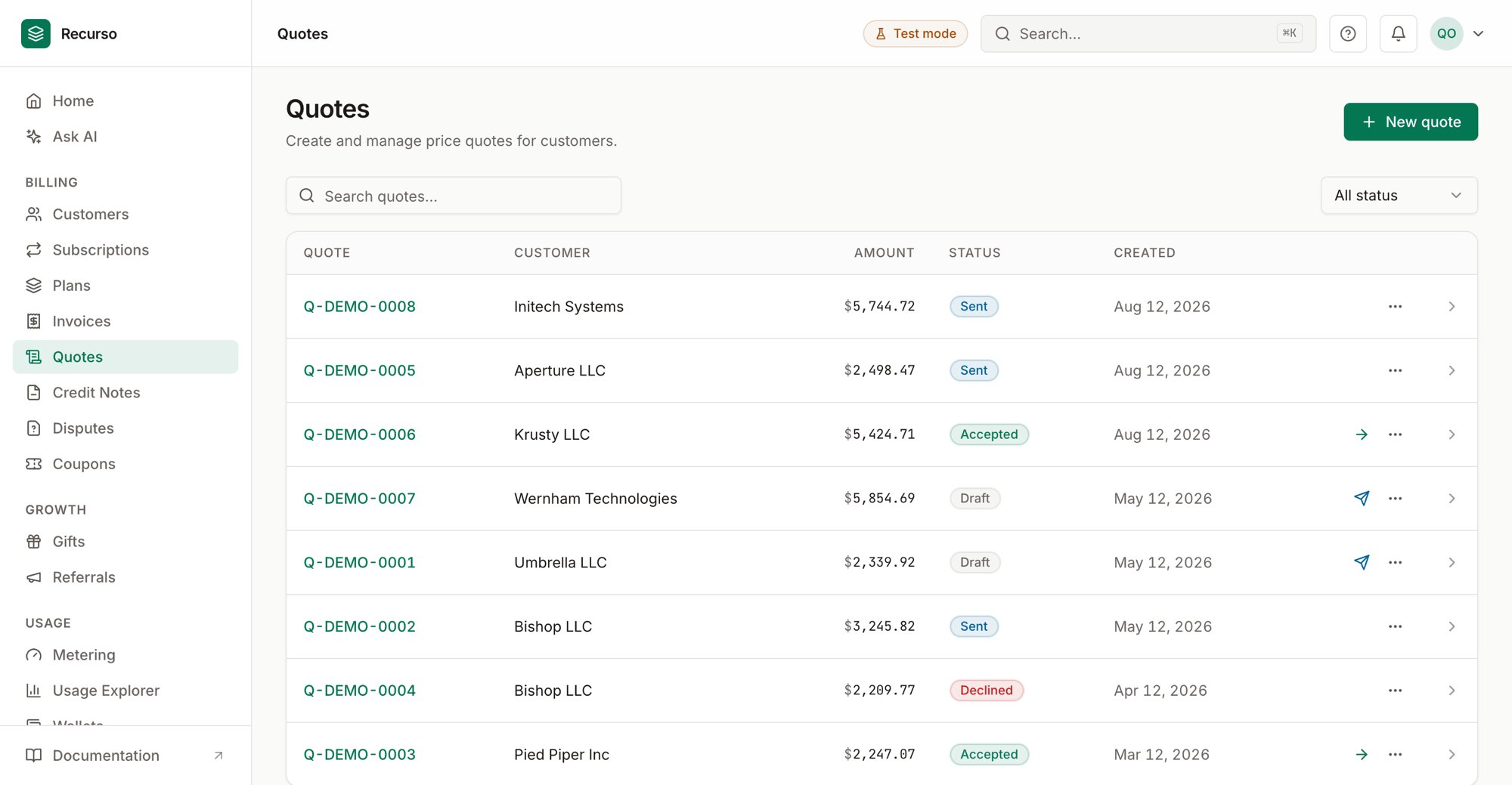
The Quotes page in the Recurso dashboard
The quote lifecycle
Quotes (in the left nav) are the sales-side of billing: a priced, line-itemed proposal you send to a customer, that converts into an invoice once accepted. Each quote moves through a lifecycle you can see at a glance:
The list shows the Quote number, Customer, Amount (the total),
Status, and Created date. Search by text and filter by status. Each row
has contextual actions on the right.
Create a quote
1
Open New quote
Click New quote to open the side panel.
2
Set quote details
- Customer (required) — pick from your customers.
- Currency — USD, EUR, GBP, or INR.
- Valid until — an optional expiry date.
3
Add line items
Each line item has a Description, Qty, and Unit price. The
Amount column computes automatically. Use Add item to add rows and the
trash icon to remove them (at least one line item is required).
Unit price and the Tax and Discount fields are entered in minor
units (cents) — the field labels show
(¢). The panel live-updates the
Subtotal, Tax, Discount, and Total as you type.4
Add notes & terms
Notes are visible to the customer. Terms & conditions default to
standard payment terms and can be edited. Click Create quote — it starts
as a draft.
Working a quote
Row actions change with the quote’s status:1
Send
A draft shows a Send action. Sending moves the quote to sent.
2
Edit
A draft can be edited — the Edit action reopens the full quote form
(customer, line items, tax, discount, valid-until, notes and terms) so you
can revise it before sending. Once a quote is sent or accepted it’s locked.
3
Convert to invoice
An accepted quote that hasn’t been converted yet shows a Convert to
invoice action. Converting turns the quote into a live invoice so billing
can begin; once converted, the action disappears.
4
Delete
A draft or declined quote can be deleted. Accepted/converted
quotes are kept for the audit trail.
5
View details
The ⋯ action (or clicking the quote number) opens the detail panel.
The quote detail panel
The detail sheet leads with the Total amount, then lists every line item with its quantity and unit price, followed by a Subtotal / Discount / Tax / Total breakdown. Below that it shows the Customer, Valid until, Created date, and any Notes and Terms you entered.Related
Customers
The customer a quote is addressed to.
Invoices
Where a converted quote lands.
Plans & products
Reference catalog pricing when quoting.