

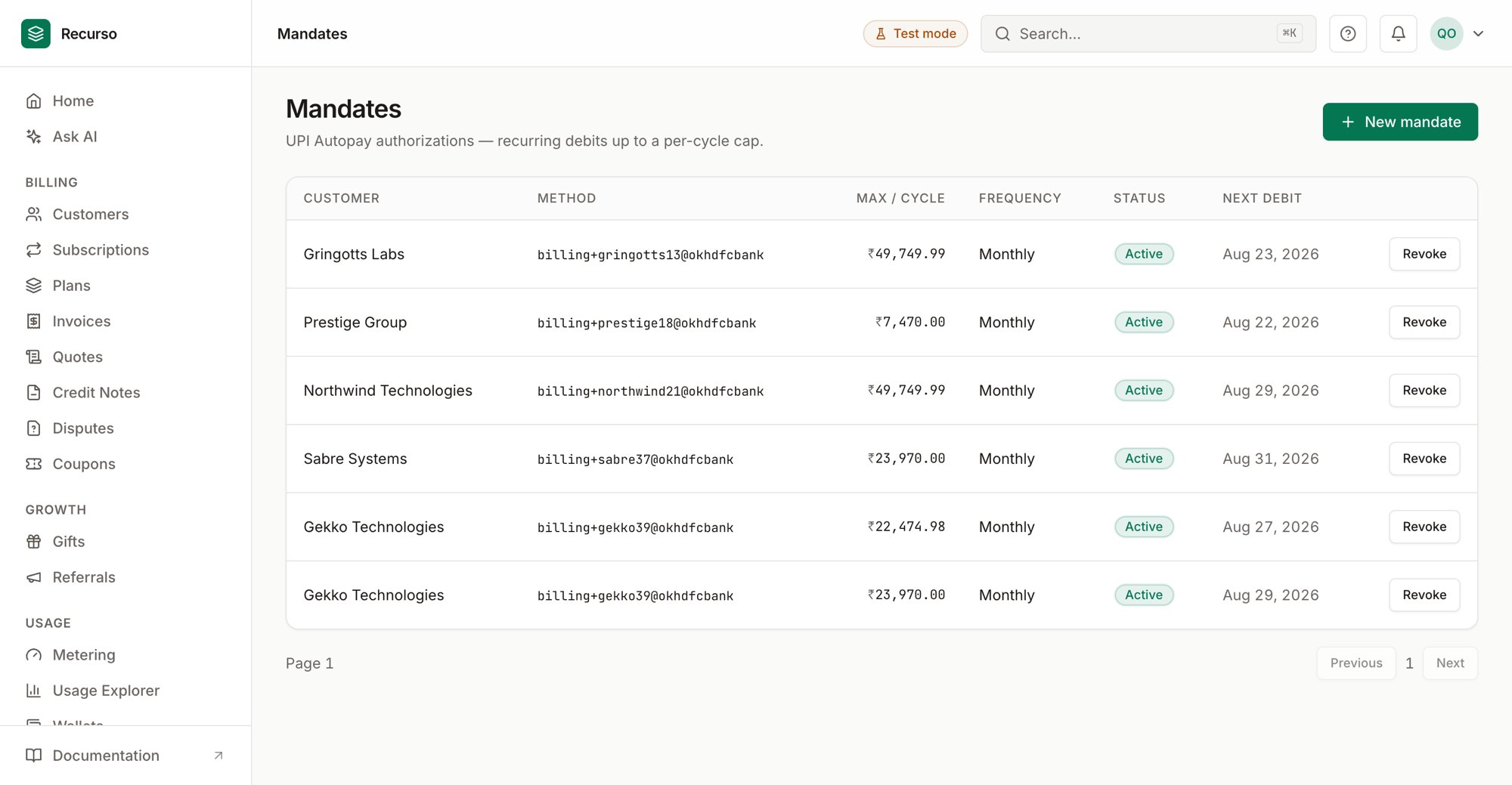
The Payments & mandates page in the Recurso dashboard
Money outside the checkout
Two dashboard screens cover money that moves outside the online checkout:- Offline payments — record NEFT / cash / cheque receipts and issue virtual accounts customers transfer into.
- Mandates — UPI Autopay authorizations that let you debit a customer up to a cap each cycle.
Virtual accounts and UPI mandates are INR features. Amounts are entered in
major units in the forms and stored as minor units.
Offline payments
Open Offline payments in the left nav. It has two tabs: Recorded payments and Virtual accounts.Record a payment
On the Recorded payments tab, click Record payment to open a right-side sheet:1
Pick the customer and (optionally) an invoice
Choose a Customer. The Invoice picker then lists that customer’s
unpaid invoices (open / overdue / past due). Selecting one settles that
invoice and prefills the amount and currency; leave it Not linked to
record an unallocated payment.
2
Enter the payment
Choose a Type — Bank transfer, Cash, or Cheque — and an
Amount. Optionally add TDS withheld, a Reference no. (UTR /
cheque number), and Notes.
3
Record
Click Record payment. It appears in the table with the customer, type,
amount (plus TDS if any), reference, linked invoice, and who recorded it.
Virtual accounts
Switch to the Virtual accounts tab and click New virtual account to issue a dedicated account number a customer can transfer into.- Pick a Customer, optionally link an Invoice (which prefills the expected amount), and set the Expected amount (INR).
- The table lists each account’s number, IFSC and bank name, customer, Expected vs. Received amounts, and a status badge (active or otherwise).
Recurso reconciles inbound bank transfers against the virtual account, moving
the Received amount up as money arrives.
UPI mandates
Open Mandates in the left nav. A mandate is a standing UPI Autopay authorization to debit a customer up to a per-cycle cap. Each row shows:Create a mandate
Click New mandate to open the sheet:1
Customer and VPA
Pick a Customer and enter their VPA (UPI ID), e.g.
customer@upi.2
Cap and frequency
Set the Max amount (INR) per cycle and a Frequency (weekly /
monthly / quarterly / yearly).
3
Link a subscription (optional)
Optionally link one of the customer’s non-canceled subscriptions so the
mandate funds it. Click Create mandate.
Revoke a mandate
Click Revoke on any row that isn’t already revoked and confirm.Where to go next
Invoices
The invoices these payments settle.
Subscriptions
Subscriptions a mandate can fund.