

Finance reports in the Recurso dashboard
The reports at a glance
The finance reports turn your billing data into the numbers finance actually files and reviews — how MRR moved, how revenue recognizes over time, whether the books balance, what’s overdue, and the tax returns for a period. Each report is its own screen; this guide covers all of them.Most reports display in a reporting currency and, where amounts are summed
across schedules or accounts that may span currencies, fall back to showing
grouped minor-unit totals rather than asserting a single symbol. Several
reports need a few days of captured MRR history before they fill in.
MRR waterfall
Revenue waterfall
Revenue recognition
Revenue by plan
Revenue by geography
Trial balance
Reconciliation
Invoice aging
Unit economics
GST returns
MRR waterfall
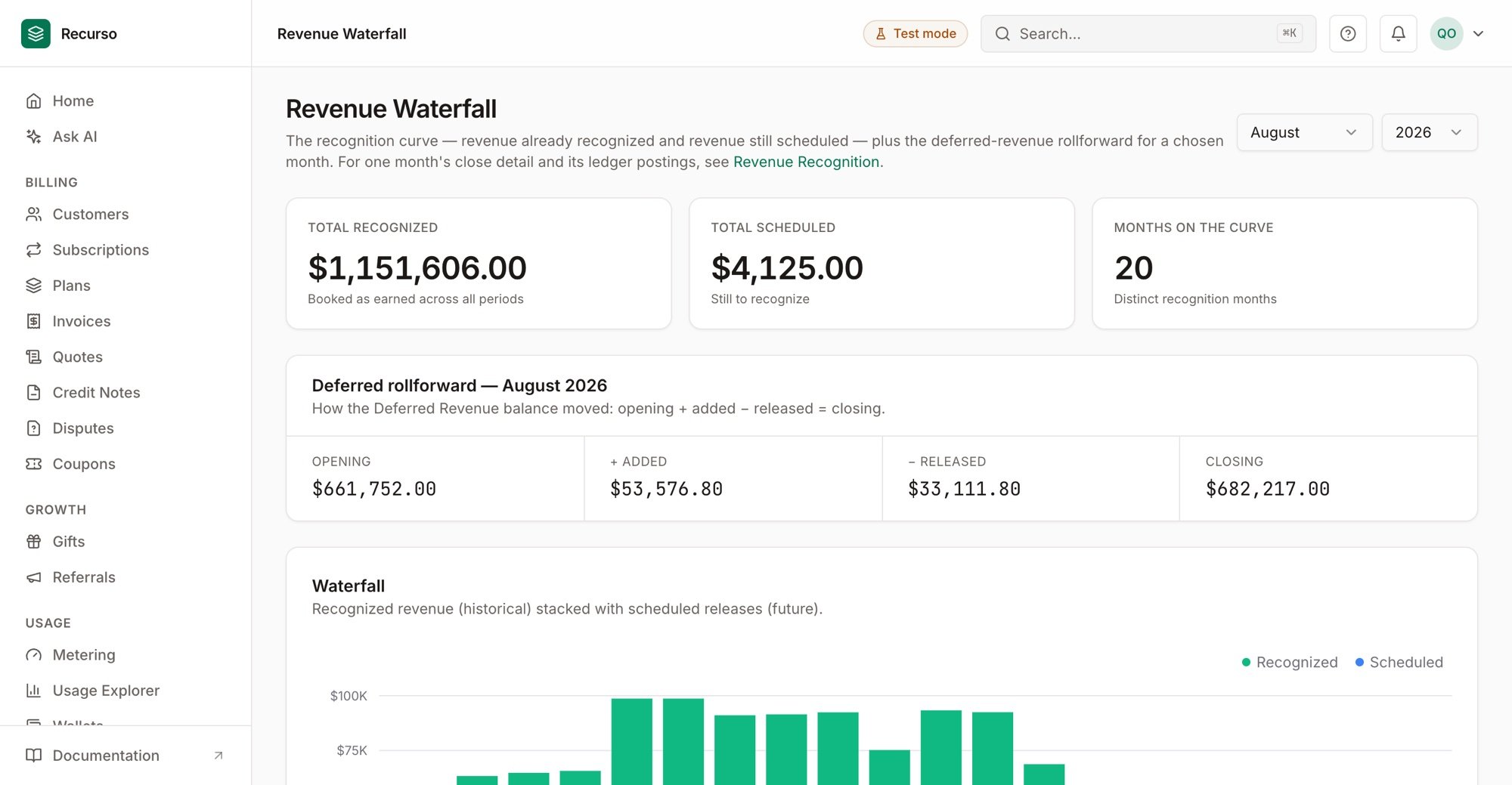
Revenue Waterfall — recognized vs scheduled with the deferred rollforward
/finance/mrr-waterfall
Shows how monthly recurring revenue moved over a period you choose with the
start/end date pickers in the header. Three cards summarize Starting
MRR, Net change (with the percentage vs. start), and Ending MRR. When
there’s starting MRR, two more cards show Net Dollar Retention (revenue kept
from existing customers, expansion included) and Gross Dollar Retention
(before expansion — churn and contraction only).
The floating-bar chart and the Breakdown list decompose the change into
New, Expansion, and Reactivation (additions, green) and
Contraction and Churned (reductions, red), bridging starting to ending
MRR.
Multi-entity workspaces can scope the waterfall to a single
legal entity; the Entities page and the Executive
Summary’s MRR by entity card carry the per-entity breakdown.
Revenue waterfall
Route:/finance/revenue-waterfall
The recognition curve plus the deferred-revenue rollforward. Cards show Total
recognized (booked as earned across all periods), Total scheduled (still
to recognize), and Months on the curve.
Pick a month and year in the header to see the Deferred rollforward for
that month — Opening + Added − Released = Closing — i.e. how the Deferred
Revenue balance moved. The Recognition curve table below lists each month
with its Recognized (historical) and Scheduled (future) revenue.
The curve fills in once you invoice for a period — an annual plan, for example —
which creates the revenue schedule that spreads across its term.
Revenue recognition
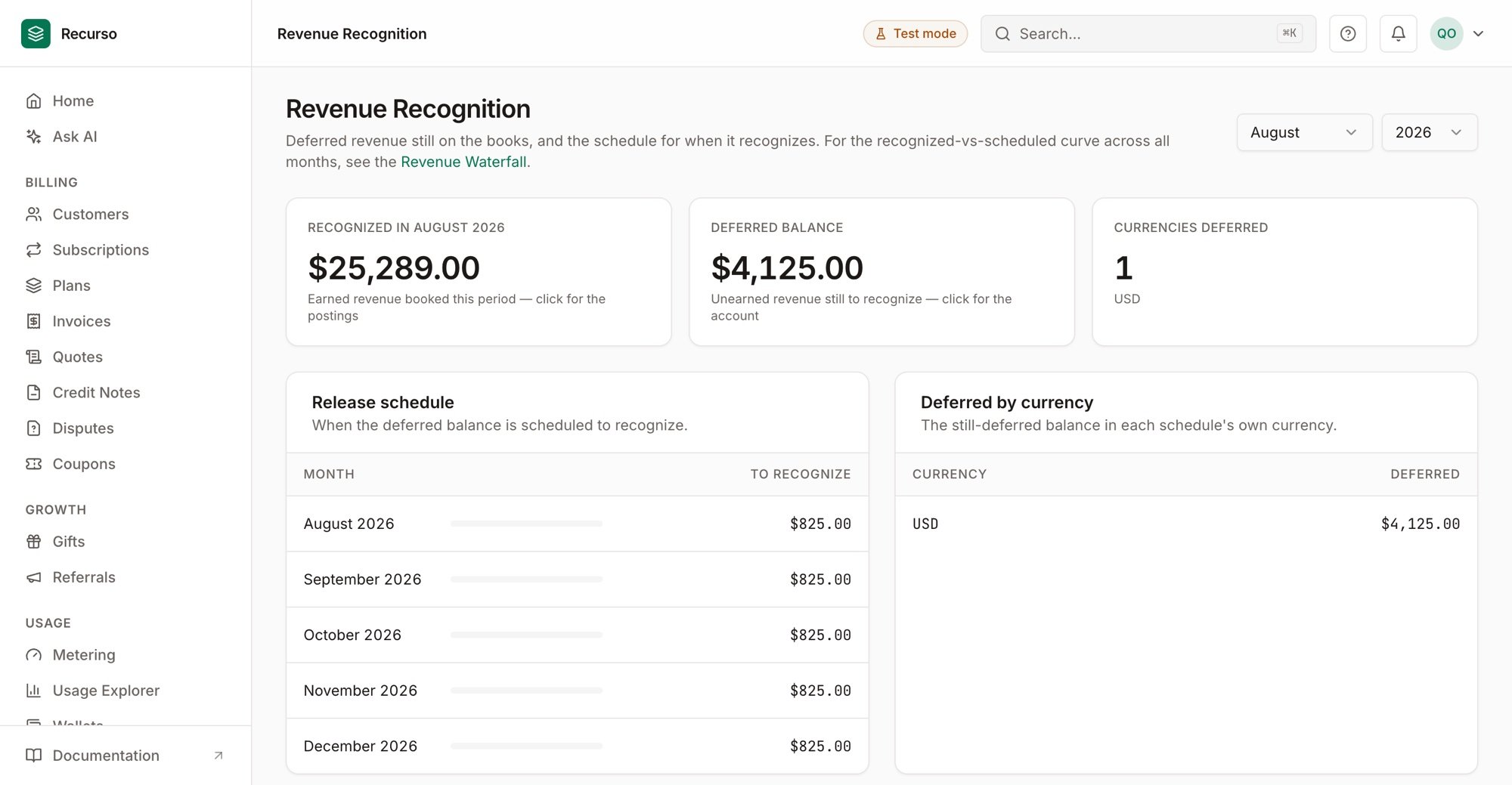
Revenue Recognition — deferred balance and the release runway
/finance/revenue-recognition
The deferred (unearned) revenue still on the books and when it’s scheduled to
recognize, for a month/year you select. Cards show Recognized in the
chosen month, the Deferred balance still to recognize, and how many
currencies are deferred.
Two tables follow: the Release schedule (which future months the deferred
balance recognizes in, and how much) and Deferred by currency (the
still-deferred balance in each schedule’s own currency).
When more than one currency is deferred, the combined totals are shown in minor
units — the per-currency table carries the real, symboled numbers.
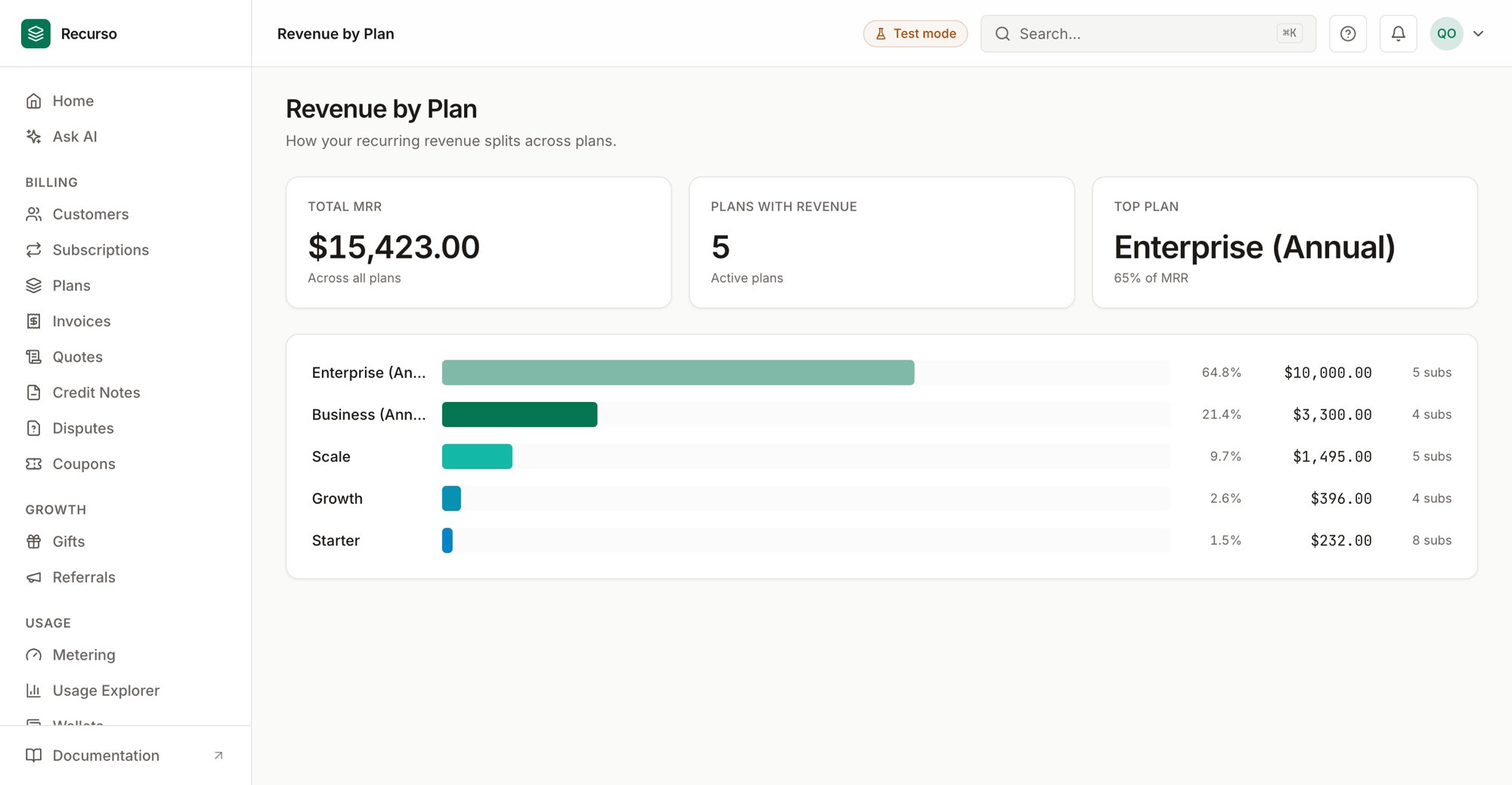
Revenue by plan
Route:/finance/revenue-by-plan
How recurring revenue splits across your plans. Cards show Total MRR,
Plans with revenue, and the Top plan (with its share of MRR). A ranked
bar list shows each plan’s label, its share percentage, its MRR, and its
subscription count — largest first.
Revenue by geography
Route:/finance/revenue-by-geography
The same ranked bar view as revenue by plan, but split by customer country.
Cards show Total MRR, the number of Countries with revenue, and the
Top region. Each bar shows a country’s label, share percentage, MRR, and
subscription count.
Trial balance
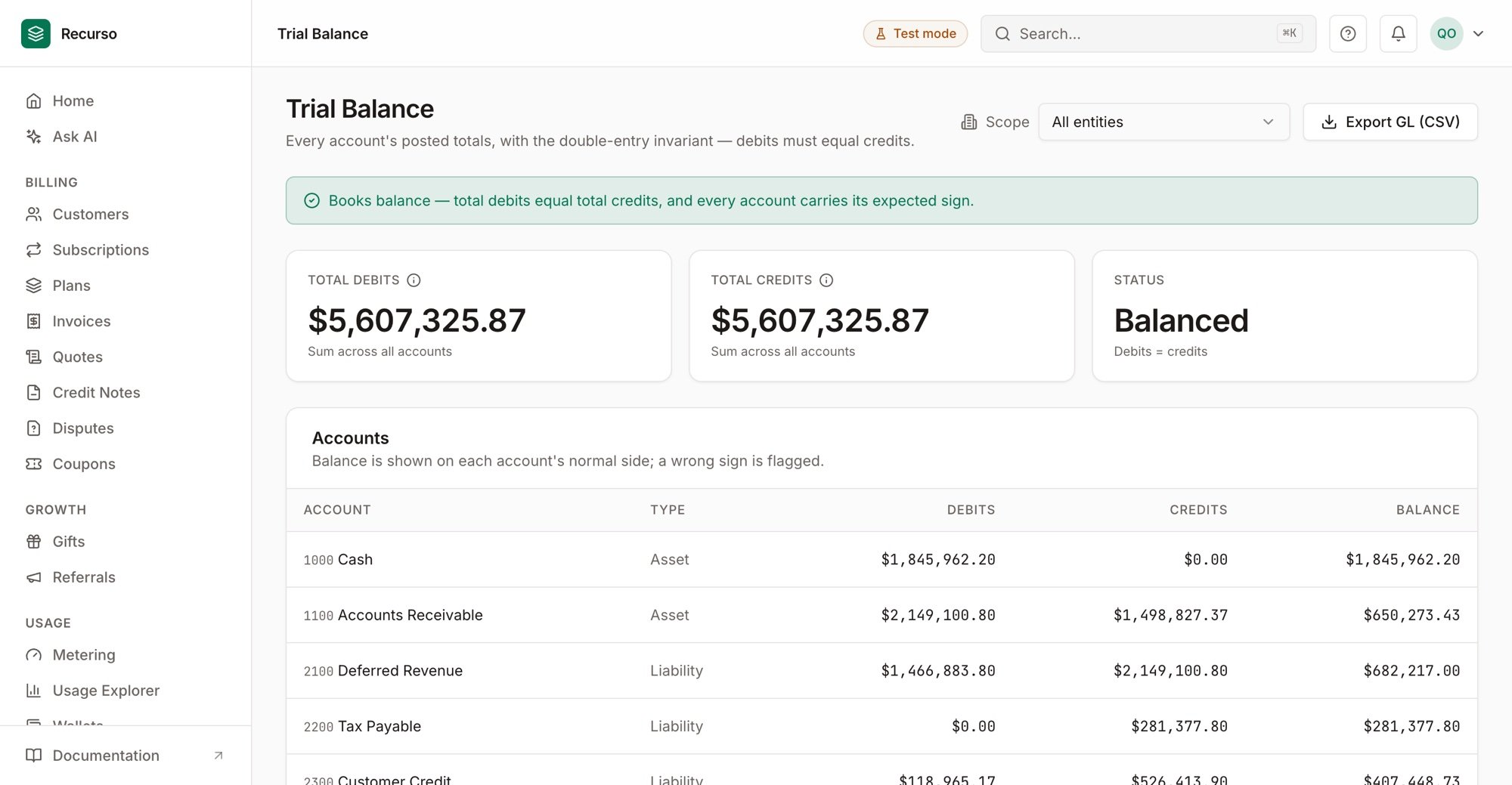
Trial Balance — books balance, every account on its expected sign
/finance/trial-balance
Every account’s posted totals, with the core double-entry invariant: debits
must equal credits. A banner at the top states whether the books balance and
whether any account carries a wrong-sign (abnormal) balance. Cards show Total
debits, Total credits, and a balanced/unbalanced Status.
The Accounts table lists each account with its code, name, type (Asset,
Liability, Equity, Revenue, Expense), debits, credits, and balance. Any account
whose balance sits on the wrong side is flagged abnormal in red.
Use Export GL (CSV) in the header to download the full general ledger.
Multi-entity workspaces get a scope selector: All entities (per-entity
breakdown with an Entity column), Consolidated (rolled up by account code),
or a single legal entity’s ledger. The GL export scopes
the same way. Single-entity workspaces don’t see the selector.
Reconciliation
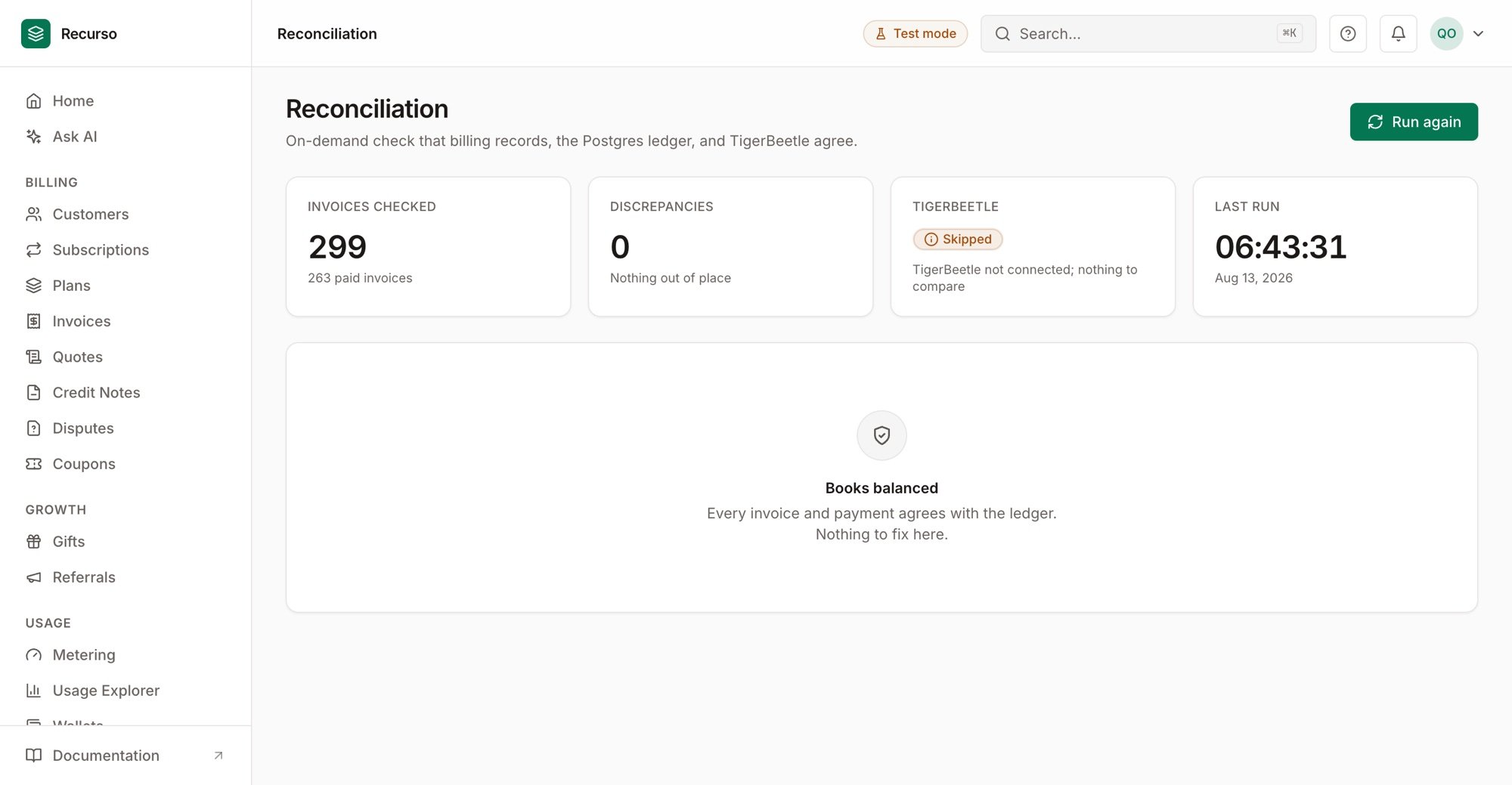
Reconciliation — zero discrepancies, every invoice and payment agrees with the ledger
/finance/reconciliation
An on-demand check that billing records, the Postgres ledger, and TigerBeetle
(when enabled) all agree. It runs when you open the page; Run again re-runs
it. Cards show Invoices Checked (with the paid subset), the number of
Discrepancies, the TigerBeetle comparison status (Compared with
account/transfer counts, or Skipped with a reason), and the Last Run
time.
If everything agrees, you get a Books balanced state. Otherwise a
Discrepancies table lists each issue by type — e.g. missing invoice
transaction, invoice/payment amount mismatch, orphaned transaction, or a
Postgres/TigerBeetle mismatch — with the invoice, transaction, and reference
IDs and the Expected vs. Found amounts (in minor units).
If the result is truncated, a notice tells you how many discrepancies are shown
out of the total — resolve those and run again to see the rest.
Invoice aging
Route:/finance/invoice-aging
Outstanding receivables bucketed by how far past due each open invoice is. Cards
show Total outstanding (with the open-invoice count), Overdue (past due
date), and Current (not yet due).
The By age bar chart breaks the total into buckets — Current, 1–30,
31–60, 61–90, and 90+ days — coloured from healthy green to deep
red as they age, each with its amount and invoice count.
Multi-entity workspaces can scope aging to a single
legal entity with the selector in the header.
Unit economics
Route:/finance/unit-economics
Revenue per account and per subscription, plus lifetime value. Cards show
ARPA (average revenue per customer/month), ARPU (average revenue per
subscription/month), and LTV.
The Basis panel shows the inputs: MRR, Active customers, Active
subscriptions, and Monthly churn.
LTV = ARPA ÷ monthly revenue churn. Churn is measured from captured MRR history,
so LTV shows
— until there’s a trailing month to compare against.GST returns
Route:/finance/gst-returns
Return-ready India GST filings for a tax period. Set the month and year
(it defaults to the previous month — the period you’d be filing), then switch
between the GSTR-1 (outward supplies) and GSTR-3B (summary) tabs.
Click Build return to generate and preview the return’s sections. Once
built, download it as either the GSTN JSON (the exact upload file the GSTN
portal accepts) or a Readable JSON copy.
Related
Ledger & audit
The double-entry ledger these reports summarize, and the audit log.
Run your monthly close
The end-to-end month-end workflow across these reports.
Month-End Close
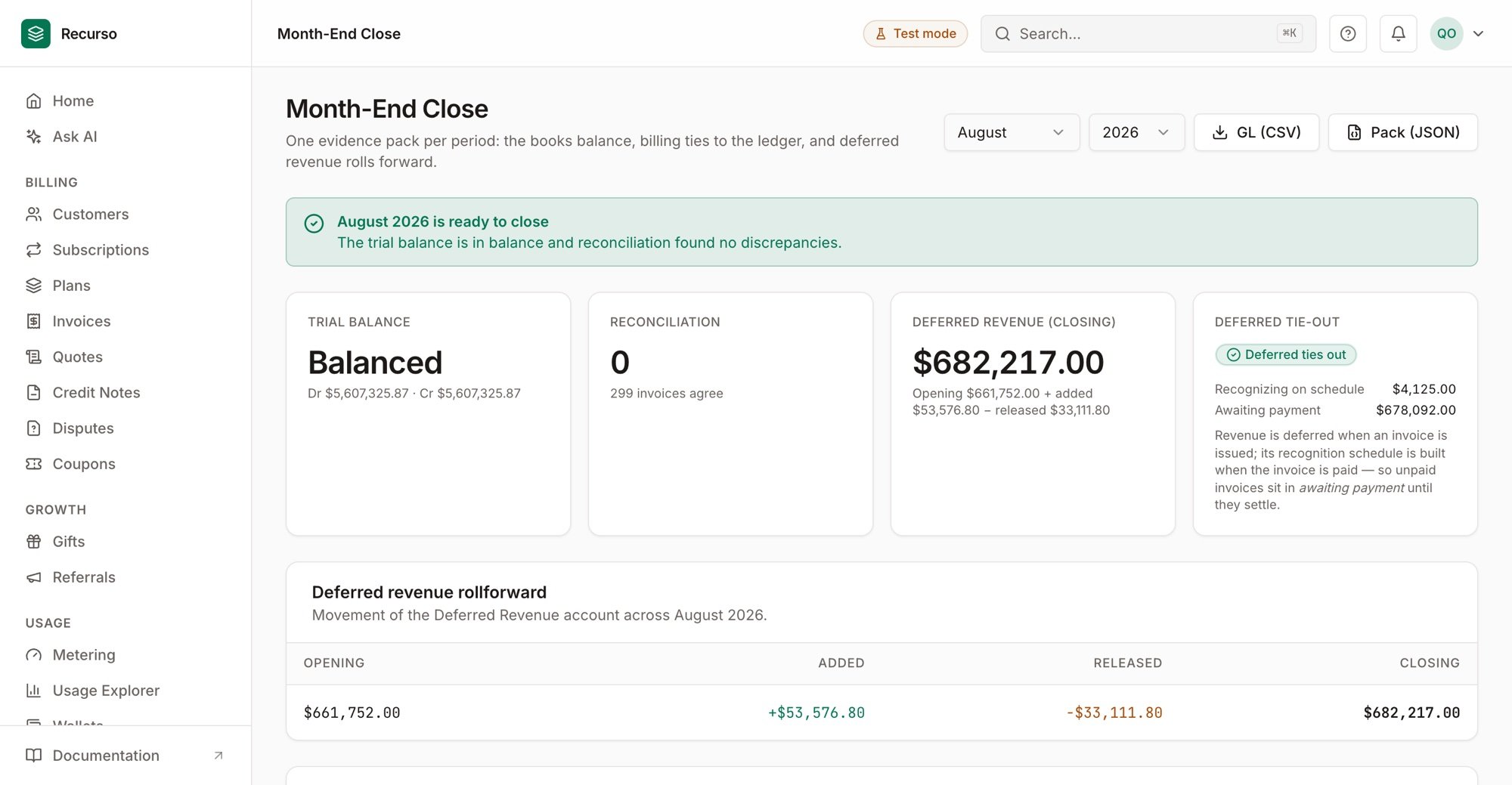
Month-End Close — ready to close: books balanced, zero reconciliation discrepancies