

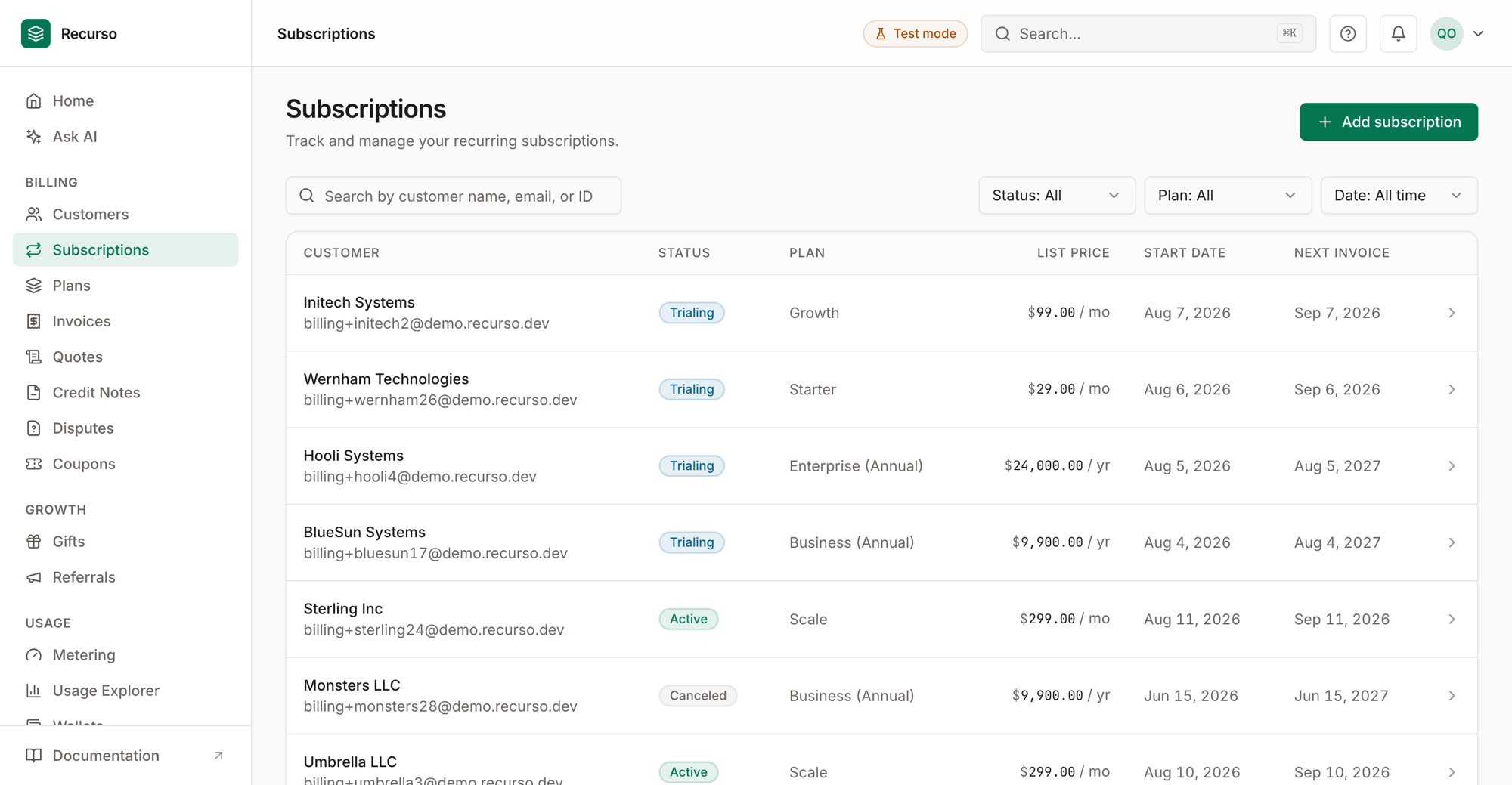
The Subscriptions page in the Recurso dashboard
Managing subscriptions
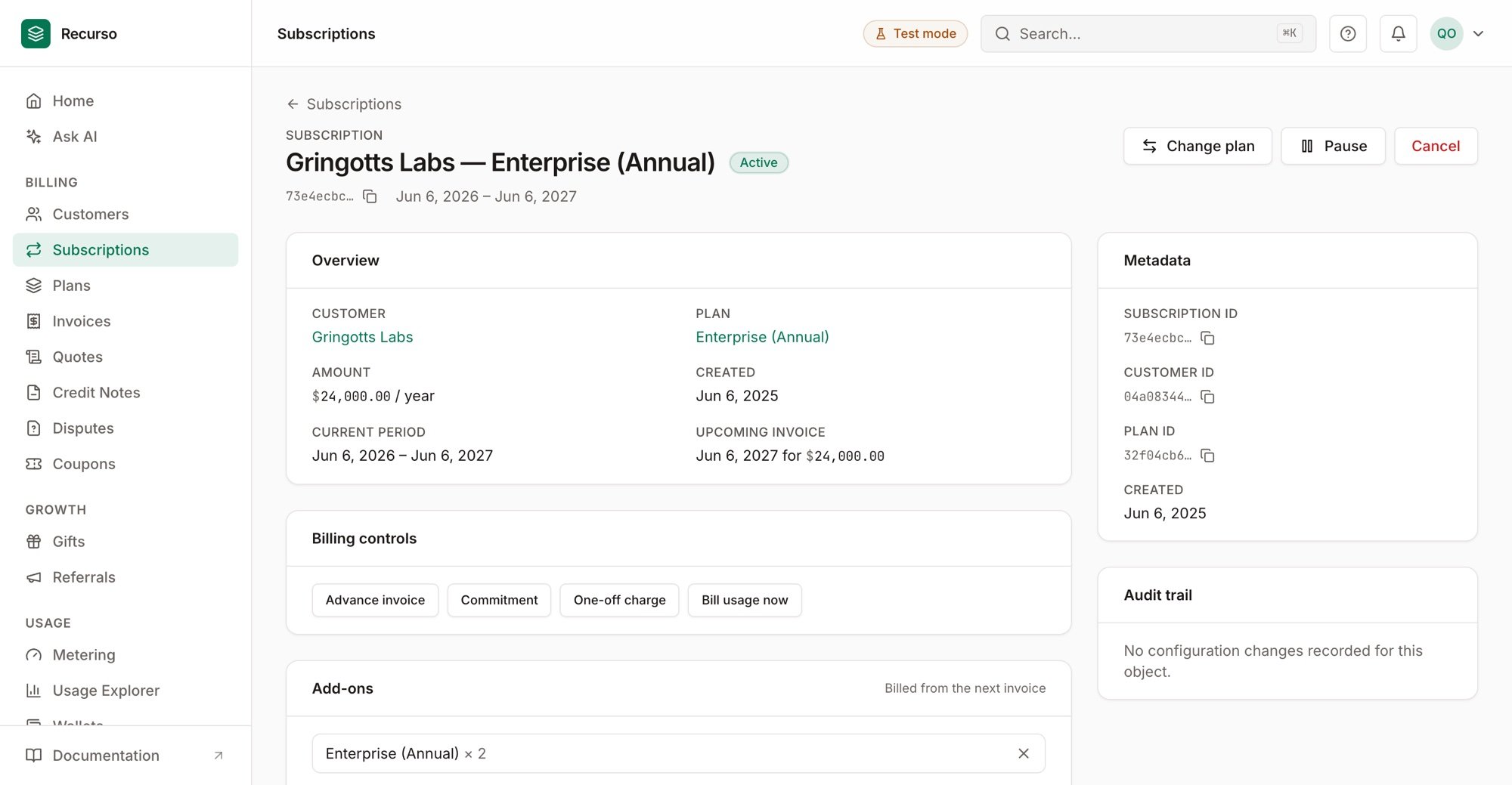
The subscription detail — actions, current period, upcoming invoice, add-ons, timeline
The subscription list
Each row shows:Status badges
Search and filter
- Search by customer name, email, or ID (debounced).
- Filter by Status, by Plan, and by Date (all time / last 30 days / this month).
- Paging is server-driven with Prev / Next (10 per page).
Create a subscription
Click Add subscription. A right-side sheet opens.1
Customer & plan
Pick an existing Customer and a Plan from the dropdowns. The plan
dropdown shows each plan’s price and interval.
2
Scheduling & billing
- Start date — defaults to today.
- Billing anchor — Acquisition date (billing repeats from the start date) or Calendar billing (1st of month) (the first period is prorated and all renewals align to the 1st).
- Payment terms — Due on receipt (default), or Net 15 / 30 / 45 / 60 days after the invoice date.
3
Authorize and create
Tick the billing authorization consent box to confirm recurring billing
is authorized — the form won’t submit without it. A Summary box
previews the customer, plan, start date, terms, and total. Click Create
subscription.
If the plan runs through Razorpay recurring billing, a Razorpay
authorization dialog opens to capture the customer’s mandate before the
subscription becomes active.
Subscription detail
Click any row to open the detail sheet. The header shows the subscription ID and a live status indicator. Below it a grid lists the customer, plan, amount, created date, current period, and the upcoming invoice date and amount.Lifecycle actions
The action buttons shown depend on the current status; each opens a confirmation dialog:Change plan
Click Change plan, pick a new plan, and Recurso fetches a proration preview: credit for unused time, the prorated charge for the new plan, tax, and the net Due now (or Credited to account), plus the next invoice amount and date. Click Confirm plan change to apply.Add-ons
The Add-ons section lists any attached add-on plans and their quantity. Pick an add-on plan, set a quantity, and click Add to attach one; the × removes it.Add-ons bill from the next invoice, not immediately.
Advance invoice & commitment
For active subscriptions, two extra controls appear:- Advance invoice — generate one invoice now covering the next N billing periods (1–60).
- Commitment — set a minimum amount billed per period regardless of usage; set it to 0 to clear.
Timeline
A short timeline shows when the subscription was created and when the next renewal is scheduled.Where to go next
Plans & products
Build the catalog subscriptions draw from.
Invoices
See the invoices a subscription generates.