

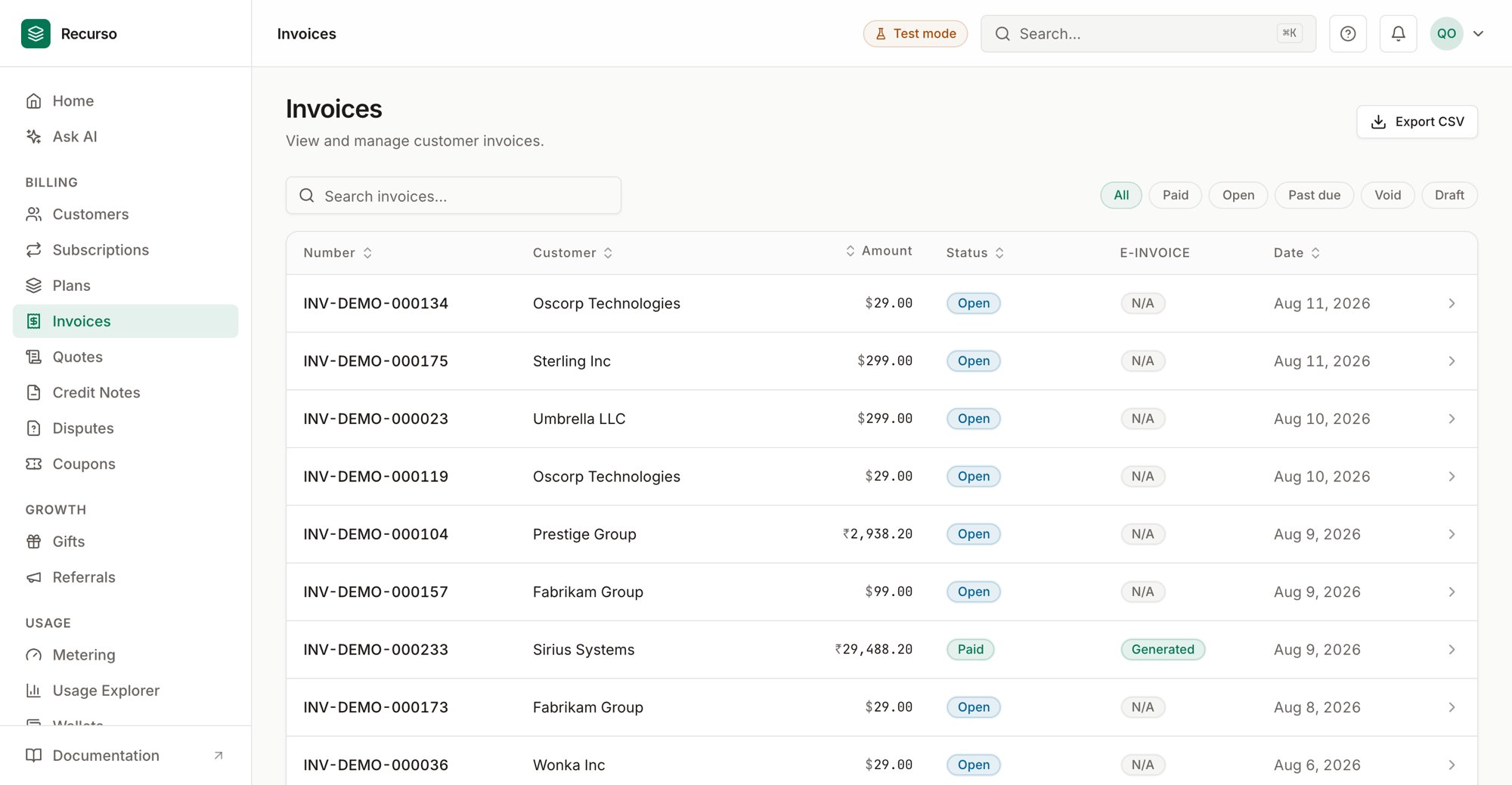
The Invoices page in the Recurso dashboard
The invoice list
Each row shows:Status badges
The E-Invoice column shows GENERATED, FAILED, CANCELLED, or
NA; a pending or missing status shows as a dash.
Search matches invoice number, customer ID, or status. Invoices are generated
by billing runs and other flows — there is no “create invoice” button on this
screen.
Invoice detail
Click a row to open the Invoice details sheet. It leads with the total and a status badge, then shows:Line items
Each line’s description, quantity, and amount. For GST invoices the line also shows its HSN code and GST rate.Amount breakdown
A summary box totals the invoice:- Subtotal
- Tax — split into IGST, CGST, and SGST for GST invoices, or a single Tax line otherwise.
- TDS withheld — shown as a deduction when present.
- Total, Amount paid, and Amount due (highlighted red while a balance remains).
Download PDF
Download PDF at the bottom opens the rendered invoice in a new tab.GST e-invoicing
When an invoice has a GST e-invoice, an E-Invoice section shows its status, IRN, acknowledgement number and date, and any error message.1
Retry a failed e-invoice
If the status is FAILED, click Retry to re-submit it to the IRP.
2
Cancel an IRN
If the status is GENERATED, click Cancel IRN. Choose a cancel
reason (Duplicate, Data Entry Mistake, Order Canceled, or Others), add
remarks, and click Confirm cancel.
EU e-invoicing
For an invoice issued under an EU-enabled entity, the invoice detail shows an EU e-invoice section alongside the GST one, with its status (GENERATED, SENT, or FAILED), syntax (UBL 2.1), delivery id, and any
error.
1
Download the UBL
Click Download UBL to save the generated EN 16931 / UBL 2.1 XML — the
exact document handed to the Access Point.
2
Retry a failed e-invoice
If the status is FAILED, click Retry. This regenerates and
re-transmits the document, recovering both generation and transmission
failures; it’s idempotent.
Live delivery to the Peppol network requires a connected Access Point. Until one
is wired, documents are generated and stored (and retrievable/downloadable), and
the background worker keeps redriving failed transmissions. See
EU e-invoicing for setup.
Where to go next
Payments & mandates
Record a payment that settles an invoice.
Credit notes
Adjust or refund against an invoice.
Invoice detail
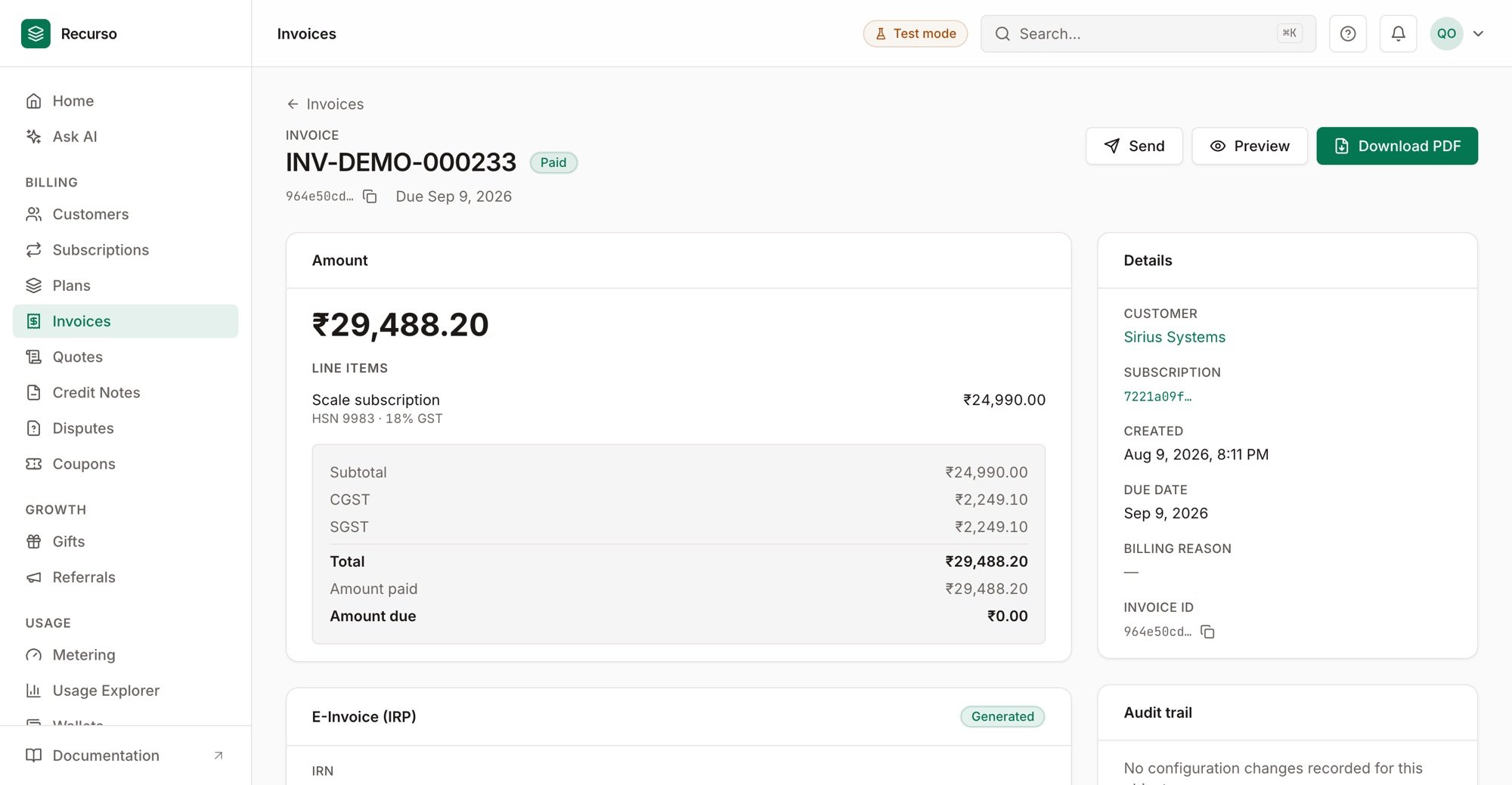
Line items with per-line GST (CGST/SGST + HSN), totals, and the e-invoice status