

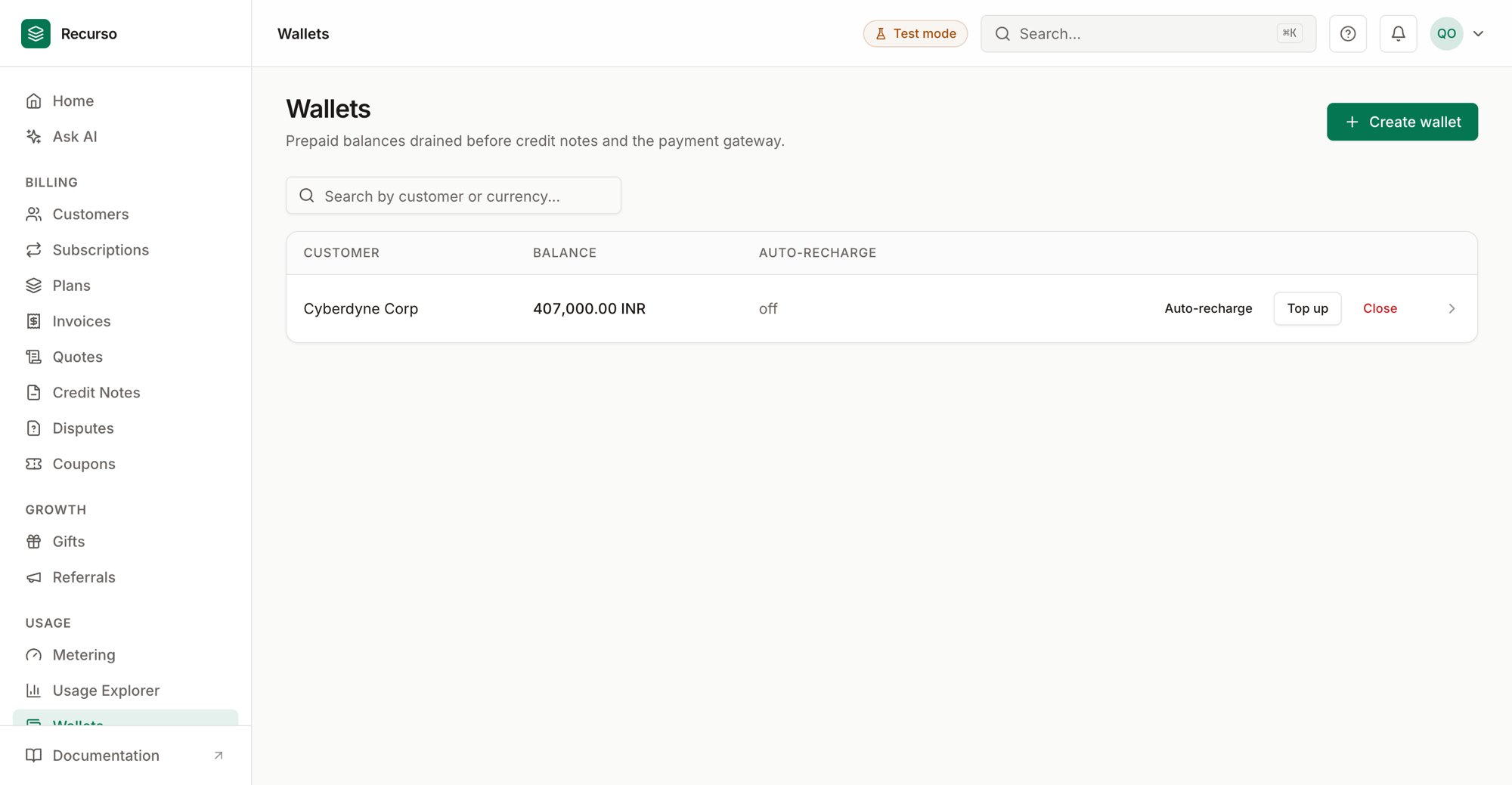
The Wallets page in the Recurso dashboard
What a wallet is
Wallets (in the left nav) holds prepaid balances for your customers. A wallet is money a customer has already paid in — Recurso spends it down before it reaches for credit notes or charges the payment gateway, so a customer with a funded wallet is billed against that balance first. Each wallet belongs to one customer and is denominated in a single currency. The list shows every wallet with its owner, current balance, and whether auto-recharge is on.Wallets are drained before credit notes and the payment gateway. This makes
them useful for prepaid credit, promotional grants, and top-up-style billing.
The wallet list
The table has a row per wallet:
Search filters by customer or currency. Click any row to open its
transaction history.
Create a wallet
1
Click Create wallet
Opens a side panel.
2
Pick the customer and currency
Choose the customer from the picker and set a 3-letter currency code
(defaults to
INR). Click Create wallet.Top up a balance
Click Top up on a wallet row to add funds.1
Enter the amount
In the wallet’s currency (for example
5000.00).2
Choose a source
- Manual (money received) — you received the money out of band and are recording it.
- Promotional credit — a grant you’re giving the customer.
Auto-recharge
Auto-recharge keeps a wallet from running dry. Click Auto-recharge on a row to configure it.1
Set a threshold and a recharge amount
When the balance falls below the threshold, the wallet is automatically
topped up by the recharge amount using the customer’s saved payment
method. Both values are in the wallet’s currency.
2
Save or disable
Click Save to enable it. To turn it off later, reopen the dialog and
click Disable.
Close a wallet
Closing a wallet settles and retires it. From a wallet’s row, choose Close and confirm — the action is irreversible. The remaining balance is settled in one step:- Paid balance (top-ups the customer funded) is refunded to the customer.
- Promotional balance (granted credit) is forfeited.
Transaction history
Click a wallet row to see its recent movements (newest first). Each entry is tagged by type:
Each row shows the amount, the source (where relevant), and the resulting
balance after the movement, so you can trace the running balance.
Related
Invoices
See where wallet balance is applied against amounts due.
Payments & mandates
The saved payment methods auto-recharge draws on.
Wallet activity
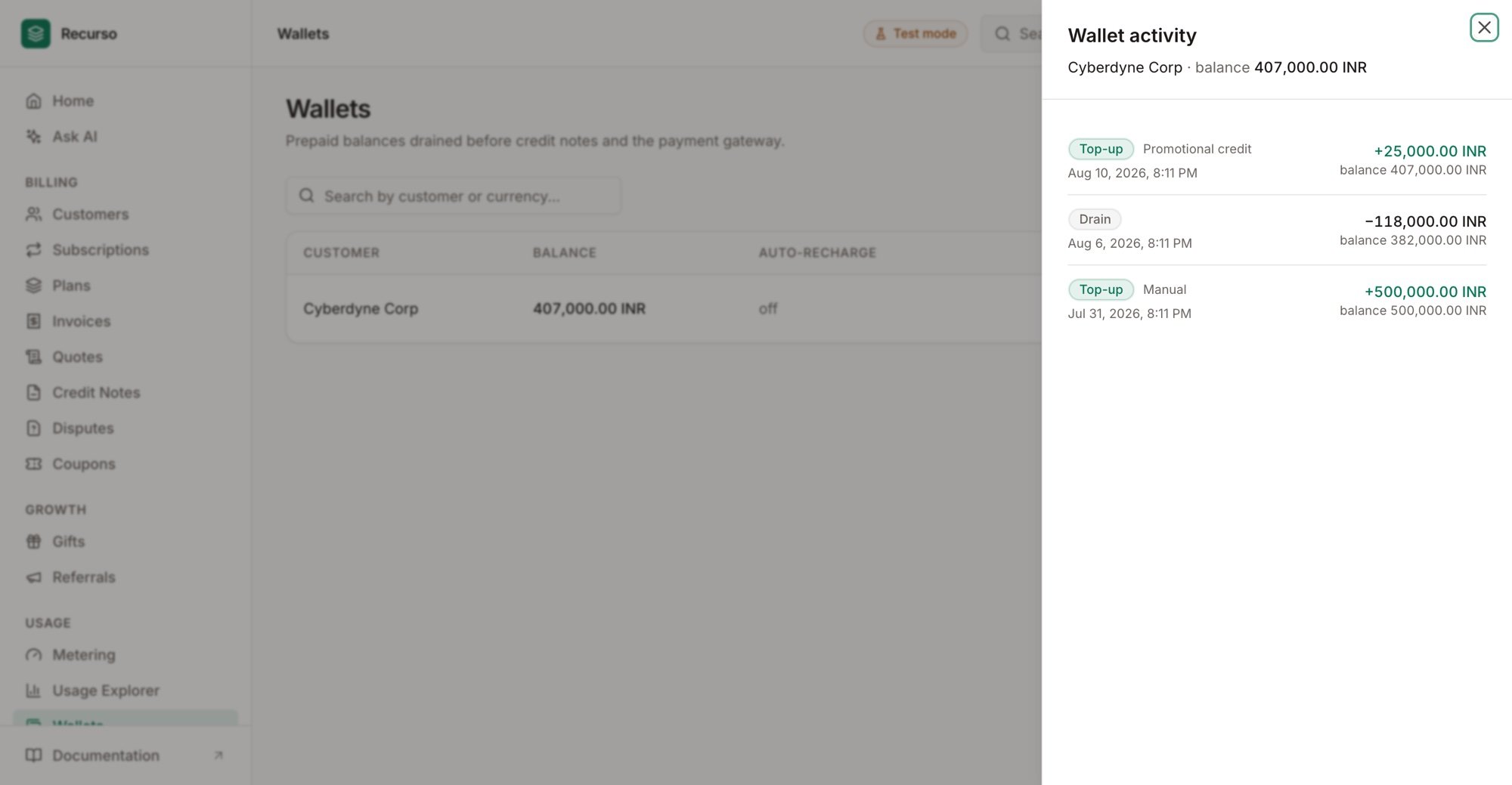
Every movement with its running balance — top-ups, drains, refunds
Auto-recharge
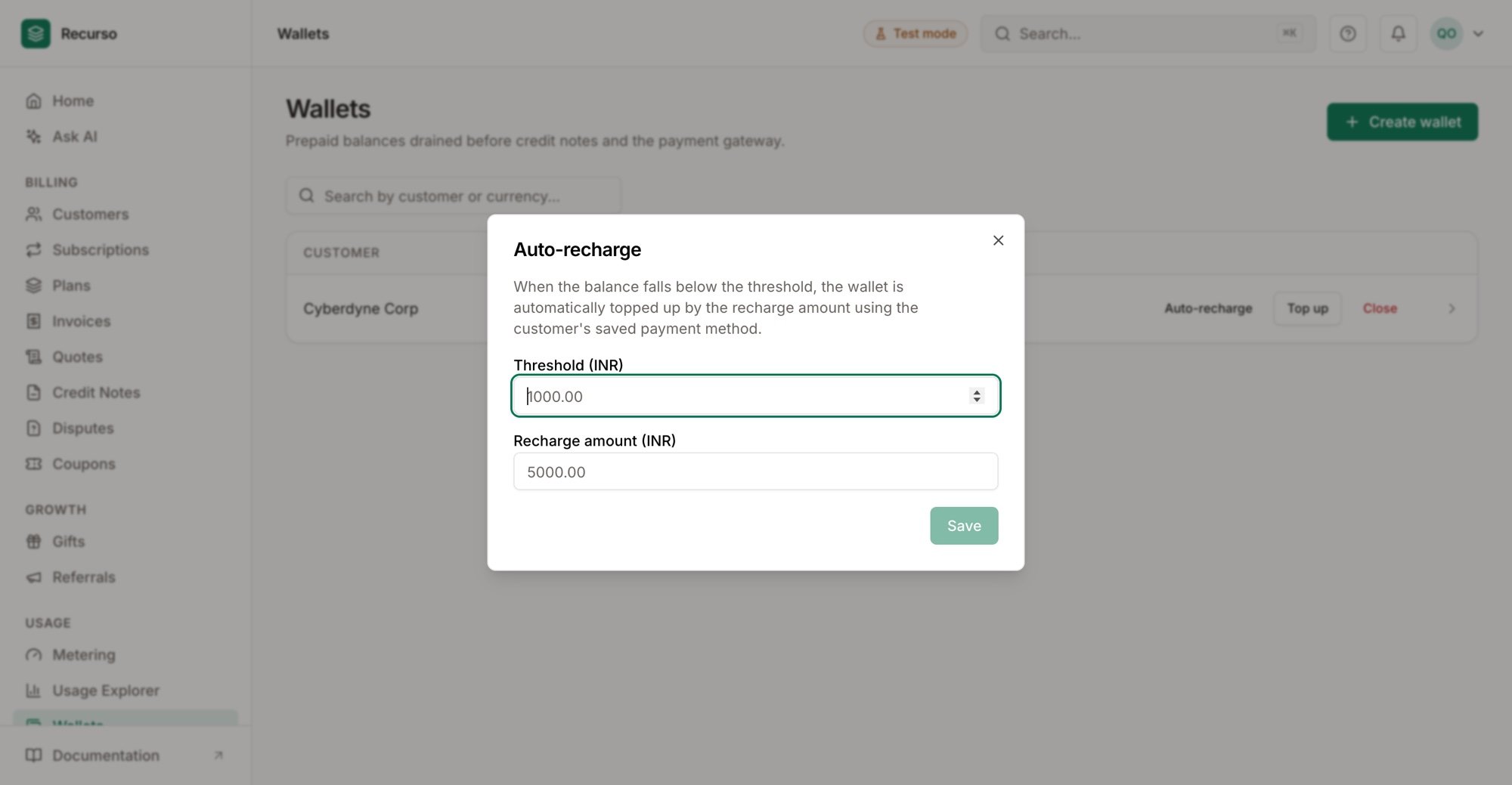
Threshold-based top-ups from the customer's saved payment method